Publish a Project to TRCPS
Trimble Connect is a web-based application designed for accessing, viewing, and collaborating on project information directly from your web browser. The Trimble Reality Capture Platform Service (TRCPS) is an extension of Trimble Connect that allows you to integrate reality capture data, such as 3D scans and photos, into your Trimble Connect projects.
The Publish to TRCPS feature allows you to upload point cloud data, panoramic images, annotations and precision points from your Trimble Perspective project to a Trimble Connect project. This process is supported by the Trimble Desktop Utility (TDU), a separate application installed on your computer when you install Perspective.
To use the Publish to TRCPS feature, you must have a Trimble ID. You can create one by visiting connect.trimble.com. Make sure to sign in with your Trimble ID to access this feature, and to be connected to the Internet.
 Publish a Project
-
Tap
 >
>  Finalize & Export to open the dialog, and check the Export Project option.
 -
Select
 Cloud:
 If you are not connected to the Internet, a warning pops up asking you to check your Internet connection.
If you are not signed in, a dialog pops up asking you to sign in using your TID. Once you sign in, Perspective retrieves the projects you have on Trimble Connect. A project has the following details:
-
Project Location: Projects are located on servers in different regions (North America, Europe, Asia Pacific and Australia).
-
Project Permissions: A project administrator has full control over the project's settings, while a project user typically has access to view it (see the Trimble Connect documentation page for more information).
-
-
In the Project drop-down list, select an existing project in Trimble Connect to which you want the data to be published and stored.
When you select a project for which you do not have administrator rights, you will be unable to export to the project, and a warning will appear.
-
In the Published Name field, enter a name for the data to be published that will display in your project in Trimble Connect. By default, the project name is used as the publication name.
-
Tap Finalize.
Perspective converts TZF format files to LAS 1.4 format files one by one. You can monitor the progress in the Finalize & Export dialog. Simultaneously, Trimble Desktop Utility (TDU) connects to TRCPS and begins uploading the converted files individually to TRCPS.
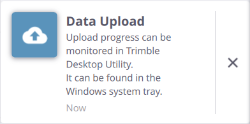
Perspective displays the following notification:
-
During the upload process:
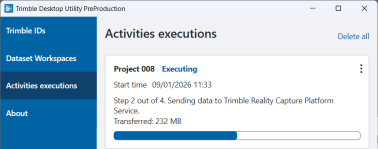
The upload progress can be viewed in the Activities Executions panel in Trimble Desktop Utility (TDU).
-
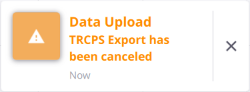
Whether you stop the data conversion (to LAS 1.4) while some are still ongoing in the Finalize & Export dialog or cancel the upload of the converted files to TRCPS in Trimble Desktop Utility (TDU):
-
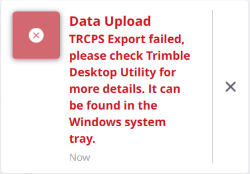
When the data has failed to be uploaded. The reason can be that your Trimble Connect storage quota - which is determined by your license - has reached its maximum capacity.
Trimble Desktop Utility (TDU) displays the Upload Failed message when the data has failed to be uploaded.
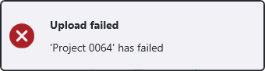 .
. -
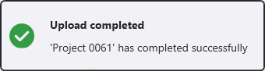
No notification, once the data has been successfully uploaded.
Trimble Desktop Utility (TDU) displays the Upload Completed message once the data has been successfully uploaded.
-
View the Published Project in Trimble Connect
Trimble Connect is a web application available at: https://web.connect.trimble.com. If you are not connected to Trimble Connect, a connection prompt appears. Sign in using your Trimble ID. After signing in to Trimble Connect, the Projects page displays all available projects. A project acts as a container for all the data and files you bring into Trimble Connect. Select the project you exported to.
The Trimble Reality Capture Platform Service (TRCPS) extension application is embedded within the Trimble Connect Web application. To enable the extension, go to Settings > Extensions, and toggle the Reality Capture extension switch to on.
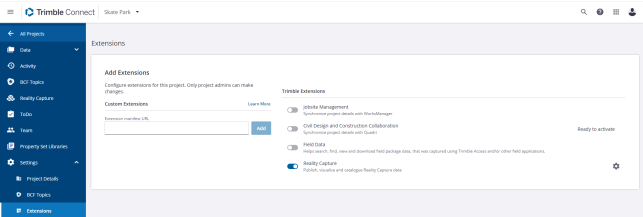
Once it is enabled, click the Reality Capture icon to display the Reality Capture page. In the Reality Capture Data panel, click the All Project Data pull-down arrow and select the project you exported to.
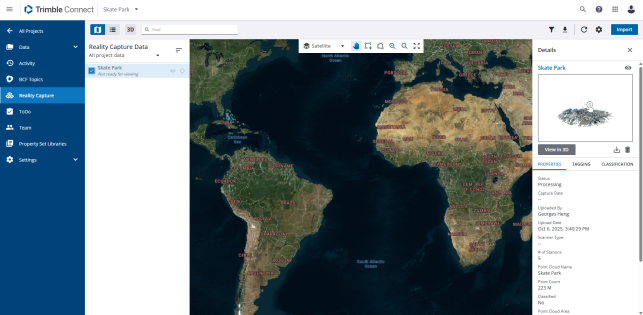
Depending on the size of the published data, it may take a bit of time before it can be viewed in Trimble Connect. During this time, a "Not ready for viewing" message displays in the Reality Capture Data pane.
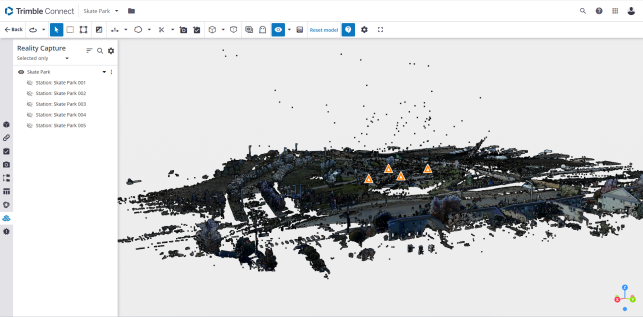
Click the View in 3D button.
All the stations in the project are published as multiple LAS 1.4 format files, without preserving the scan structure. Additionally, their JPG station panoramic images are created in TRCPS when TZF files with HQ panoramas (TPF) are available.
You can show or hide the panoramic JPG images that were created from TZF files (with HQ panoramas (TPF)).